How to Check If a Windows Server Has Been Hacked: Accounts, Ports, Startup Items and Malware
Meta Description: A compromised server often shows up as packet loss, unreachable sites, black-screen RDP sessions and a CPU pinned at 100%. This guide walks through the four standard checks on a Windows server — credentials, ports and processes, startup items and scheduled tasks, and backdoor removal — with key commands, a warning-sign table and a response order. Core Keywords: how to check if a server is hacked, Windows server intrusion check, net user suspicious account, netstat suspicious connection, msconfig startup items, webshell scan, server log forensics Suggested URL: /news/how-to-check-if-a-windows-server-is-hacked
The Short Answer
When a server has been tampered with, the symptoms are usually vague — dropped packets, pages that will not load, remote access that fails or opens to a black screen, and even when you do get in, everything lags while the CPU sits pinned at 100% and memory stays high. The whole machine is effectively paralysed.
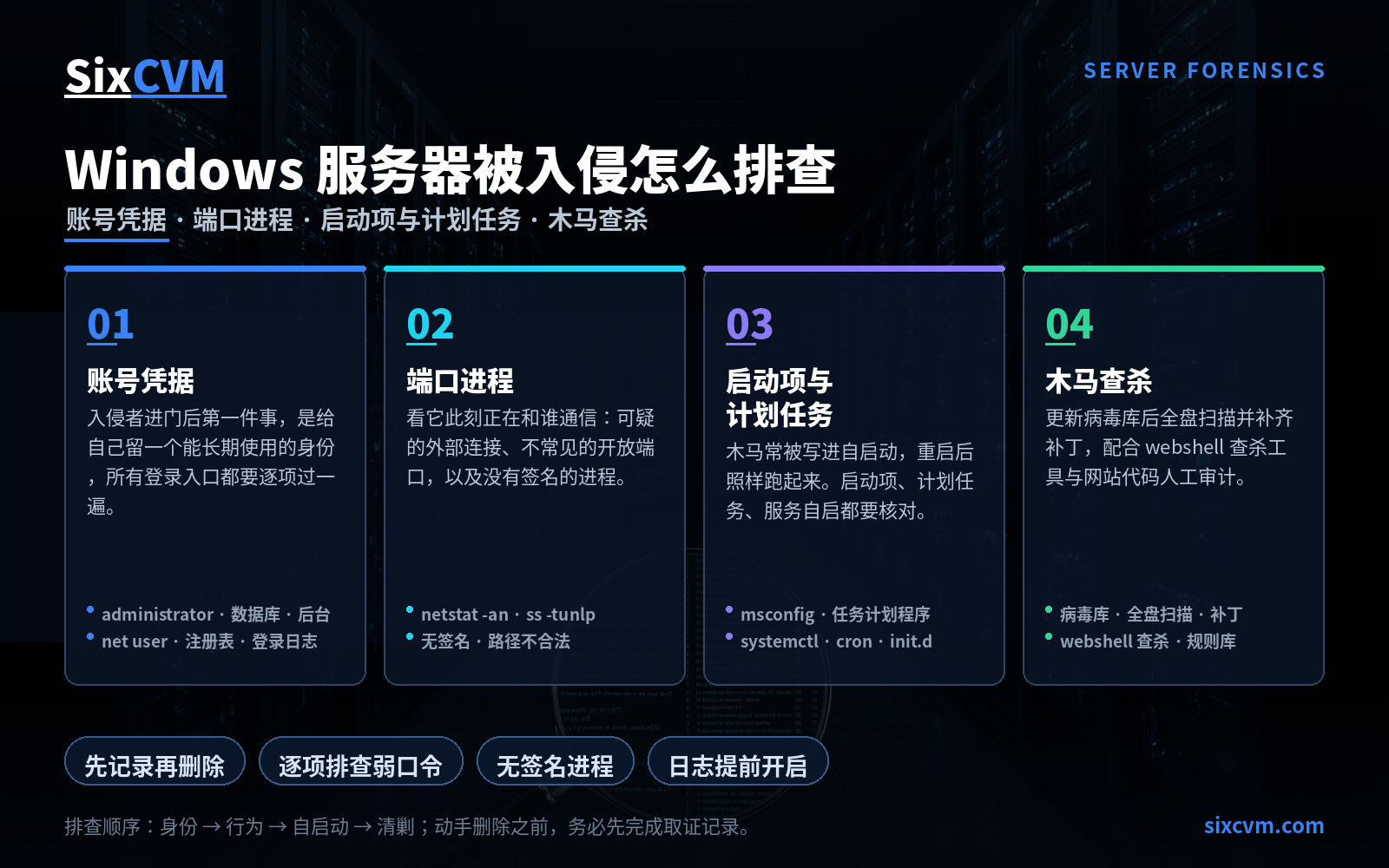
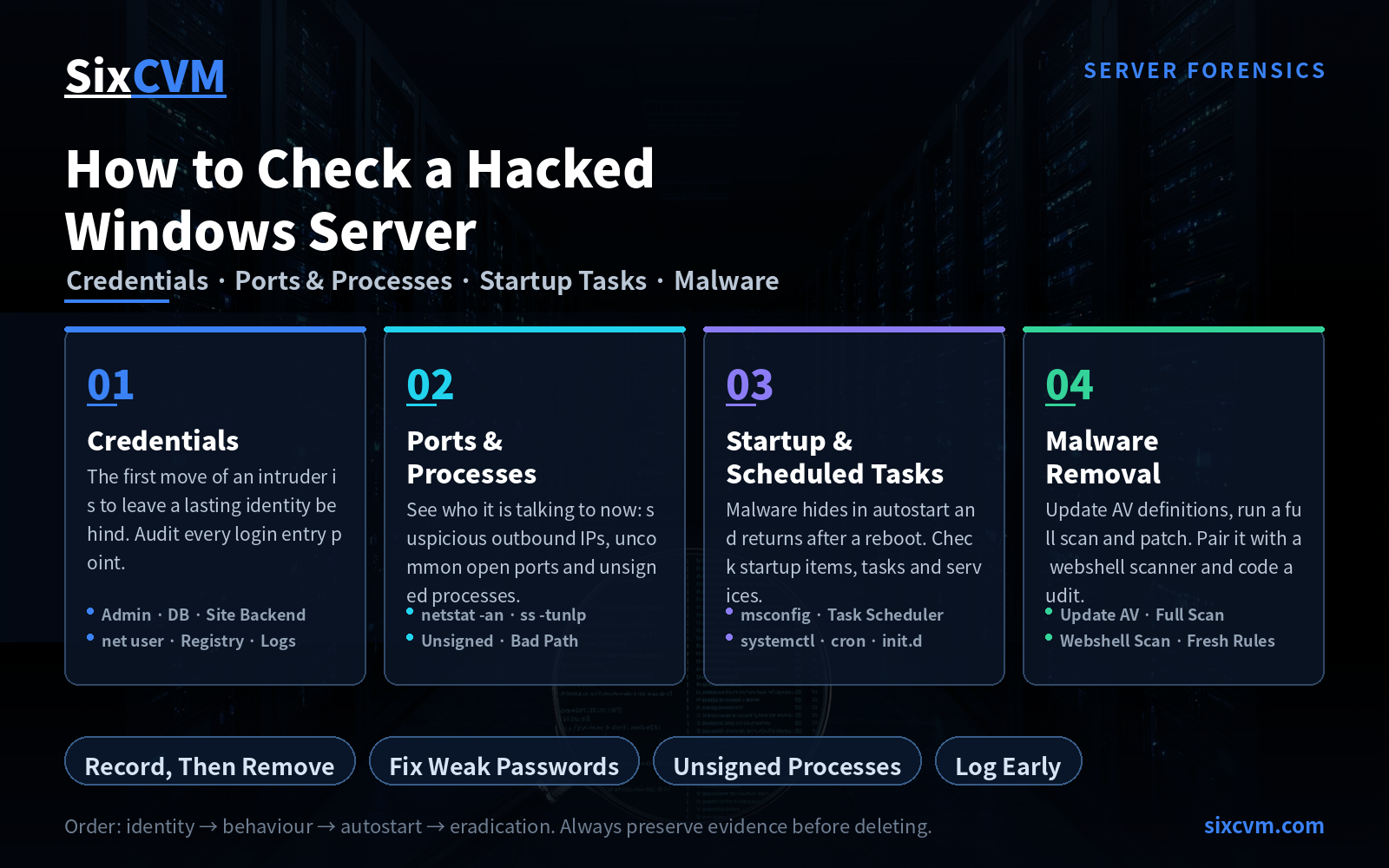
Guessing your way through that state does not work. The right approach is to check four things in a fixed order: who is using this machine (accounts and credentials) → who it is talking to right now (ports and connections) → what it will run by itself after a reboot (startup items and scheduled tasks) → what is actually hidden inside it (backdoors and malware).
The order matters. You move from "identity" to "behaviour" and only clean up last. Reverse it, and you will likely delete the traces before you have read them — and the clues go with them.
1. Account and Credential Check: Establish Who Is Using It
The first thing an intruder usually does after getting in is leave themselves an identity they can keep using. So the first check is to go through every login entry point on the machine.
Round one: weak passwords. At minimum you need to review three categories: the system administrator account (administrator on Windows), the database account (for example MySQL), and the website admin account. These are the doors most often forced open, and if any one of them uses a common word, a birthday or a run of digits, it is effectively standing open.
Round two: unfamiliar accounts. If an account you never created has appeared, or a built-in account has been unexpectedly enabled, you can broadly conclude the machine has been compromised. On Windows there are three places to look:
-
Computer Management → Local Users and Groups, to review the current account list directly;
-
The command line, running
net userto see every account on the system; -
The registry, where account information is stored — some hidden accounts never surface in the first two places.
Round three: login records. Compare administrator login history entry by entry: is the login time a late-night hour when you were asleep, is the account name one you actually use, is the source IP an address you recognise. When all three dimensions look wrong, the case is essentially closed. On Windows, open Event Viewer → Windows Logs → Security to see login events (successful logins, failed logins and new account creation each have their own event IDs); on Linux servers, check /var/log/secure or auth.log instead.
One reminder: once this round is done, replace every weak credential with a completely new, strong set — whether or not you found hard evidence of intrusion. A weak password is itself an entry point that can be used at any moment.
2. Port and Process Check: See Who It Is Talking To
With identity covered, look at behaviour — who this server is currently talking to, and what it is running.
Check connections. On Windows, run netstat -an to list all current connections and listening ports. Focus on two things:
-
Suspicious outbound connections, especially those initiated by the server to foreign addresses you do not recognise;
-
Uncommon open ports, particularly high-numbered ones — backdoor programs favour these.
On Linux the equivalent is ss -tunlp, which shows listening sockets and established connections together.
Check processes. The favourite trick of a trojan or backdoor is to disguise itself as a normal process and stay resident for the long term, so the process list deserves a careful pass. Three signals indicate a suspicious process:
-
Abnormal resource usage — a CPU that stays unusually high is a classic trait of malicious processes;
-
No valid digital signature — legitimate software usually carries a signature, and an unsigned process deserves scrutiny;
-
An illegitimate file path — normal system processes live in system directories. If a process's executable runs out of a temp folder, an image directory or a user upload folder, you can treat it as compromised.
On Linux, list processes with ps aux, then use ls -l /proc/ to see exactly where the executable points — once the path is visible, the disguise falls apart.
A critical step: before deleting any suspicious process or file, record its name, path, PID and connection details. Cleanup and forensics are two different jobs, and record-keeping comes first. Otherwise you have nothing to analyse afterwards.
3. Startup Items and Scheduled Tasks: Will It Come Back After a Reboot?
This is why many people finish an investigation and still get hit again: some malware runs again even after you reboot the server, because it was written into a startup item.
On Windows there are three places to check:
-
Startup items — run
msconfigand look at the Startup tab for entries you do not recognise, confirming each one against software you installed yourself; -
Scheduled tasks — open Task Scheduler from the Control Panel and look for suspicious tasks that fire at specific times; on servers managed with Group Policy, check tasks pushed through Group Policy as well;
-
Automatic services — review service startup types for a service set to start with the system that you do not recognise.
On Linux the equivalents are systemctl list-unit-files (which services start at boot), the scheduled jobs under /etc/cron*, any extra startup scripts in /etc/init.d/, and whether rc.local has been stuffed with new lines.
One rule of thumb: while checking startup items, compare each file's creation or modification time against your own operations log. If a startup script's timestamp falls in the window when the server was misbehaving — or at a time when you did nothing at all — you have almost certainly found your culprit.
4. Backdoor and Malware Removal: Clear Out What Is Hidden
The first three steps deal with what you can see. This one is about turning over what is still hidden inside.
At the system level: run a full security scan with antivirus software — updating the virus definitions first is not optional — and patch the operating system. Many intrusions enter through a published but unpatched vulnerability.
At the website level: audit the site code manually, focusing on vulnerable points and anywhere a backdoor could be left in the pages, and run a dedicated webshell scanner alongside it. The most common mistake here is an outdated rule set — the core strength of any scanner is its signature database, and without updates a newly written one-line webshell can easily slip through.
If you genuinely cannot work out how the attacker got in or along which path, the safest route is to back up essential data and reinstall the operating system to eliminate the source of the attack entirely. That sounds expensive, but it is far safer than keeping a machine that may hold a second backdoor.
Four Checks at a Glance
|
Check |
What You Are Looking For |
Key Entry / Command |
Warning Signs |
|---|---|---|---|
|
Accounts and credentials |
Who is using this machine |
Computer Management · |
Unknown accounts, built-in account enabled, logins outside work hours |
|
Ports and processes |
Who it is communicating with |
|
Unknown outbound IPs, high-numbered listening ports, unsigned processes |
|
Startup items and scheduled tasks |
Whether it returns after a reboot |
|
Extra startup entries, suspicious scheduled tasks, odd timestamps |
|
Backdoor and malware removal |
What is still hidden |
Full antivirus scan · Patching · Webshell scanner |
Outdated rules, suspicious scripts found, attack path unknown |
Response Order Once Intrusion Is Confirmed
-
Isolate first — separate the affected instance from the production network and cut off the source of abnormal traffic so the damage stops spreading.
-
Preserve evidence — record suspicious accounts, processes, files, connections and log excerpts. Document before deleting.
-
Rotate credentials — reset the administrator, database and site admin passwords, and check whether additional accounts, keys or authorisations were added.
-
Eradicate — remove trojans, backdoors, webshells and superfluous startup entries; if the origin cannot be established, reinstall the system.
-
Close the hole — identify the root cause, whether a system vulnerability, an application bug or a weak password, and fix that specific opening. Otherwise the same incident will repeat.
-
Harden and review — update your security policy, reassess whether the server's protection level is sufficient, and upgrade the protection profile where necessary.
The Step Most People Skip: Turn Logging On Beforehand
Whether an investigation can proceed at all depends on whether you had logging switched on before the incident.
Many servers ship with incomplete logs, or very short retention, so by the time something actually happens there is barely a fragment left to read. The right approach is to enable site logs and system logs in advance, together with an audit policy covering at least these event categories:
-
The server's own system faults and anomalies;
-
Software installation and upgrade failures;
-
Administrator operations;
-
Server login records.
That way, when an intrusion does occur, you have raw material to analyse, pinpoint and trace. A stronger practice is to ship logs in real time to another machine or a log service — because if an intruder gains system privileges, wiping the local logs is likely the first thing they do.
FAQ
Q1: If the CPU hits 100%, is that definitely an intrusion?No. High-traffic workloads, infinite loops, slow database queries and backup jobs will all max out a CPU. The key question is whether other anomalies accompany it. Unknown accounts, unusual outbound connections and unsigned processes appearing together point strongly to intrusion; if only resource usage is high and the logs are clean, investigate the application side first.
Q2: If I change every password, am I safe?No. Changing passwords closes the "password" entry point, but if the intruder has left a trojan or a scheduled task behind, they can still come back via autostart — or regain access through a backdoor. Rotating credentials must be done alongside eradication and patching; none of the three alone is sufficient.
Q3: The antivirus scan found nothing — am I in the clear?That conclusion does not follow. Antivirus works from signature databases, so newly written or deliberately obfuscated malware may slip through, and webshells on the web tier need a dedicated scanner plus manual code review. A "clean" scan is a necessary condition, not a sufficient one.
Q4: Why insist on recording before deleting?Because the purpose of an investigation is to understand how the attacker got in and what they left behind. Delete the files and processes first, and the attack path, the implant timeline and any sign of lateral movement disappear with them. You may well be re-infected days later without ever knowing why. Recording is cheap; starting over is not.
About SixCVM
SixCVM is a cloud server provider focused on Asia-Pacific and North American node resources, delivering stable, low-latency infrastructure for cross-border businesses. It currently operates seven core nodes across Hong Kong, Japan, the United States, Korea, Singapore, Taiwan and Vietnam, using CN2 GIA / BGP optimised routes, with Hong Kong latency as low as under 10ms.
Its product range covers cloud VPS, GPU servers (NVIDIA A100 / H100 / RTX series), dedicated servers, bare metal servers and domain registration — all on NVMe SSD, with minute-level provisioning, flexible scaling, snapshot backup and load balancing, backed by a 99.9% SLA and 24/7 technical support.
On the security side, SixCVM provides baseline network-layer protection and system hardening guidance, combined with snapshot and backup capabilities — so that when a server is compromised or a page is defaced, you can roll back to a clean state quickly and keep the damage to a minimum.